---
title: How To Use OneTapConnect Smart Accessories
description: An overview and guide to using your OneTapConnect NFC Smart Accessories to share your microsite in person
---
[Skip to content](https://help.onetapconnect.com/how-to-use-onetapconnect-smart-accessories#main-content)
[](https://onetapconnect.com/)
- [Home](https://onetapconnect.com/)
- [Help Center](https://help.onetapconnect.com/)
- [Book a demo](https://onetapconnect.com/contact-sales/)
- [Blog](https://onetapconnect.com/blog/)
Open main navigation
Close main navigation
- [Home](https://onetapconnect.com/)
- [Help Center](https://help.onetapconnect.com/)
- [Book a demo](https://onetapconnect.com/contact-sales/)
- [Blog](https://onetapconnect.com/blog/)
- [Submit a support request](https://onetapconnect.com/support)
[Submit a support request](https://onetapconnect.com/support)
How can we help you?
- There are no suggestions because the search field is empty.
1. [Help Center](https://help.onetapconnect.com/?hsLang=en)
2. [Getting Started](https://help.onetapconnect.com/getting-started?hsLang=en)
# How To Use OneTapConnect Smart Accessories
### What are OneTapConnect Smart Accessories?
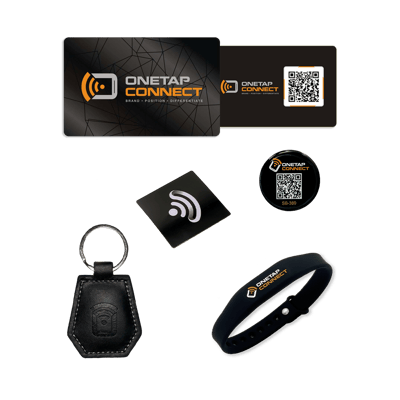
OneTapConnect Smart Accessories are physical items containing *near-field communication* (NFC) chips that can be held up to smartphone NFC sensors to share your microsite during in-person interactions. Most OneTapConnect Smart Accessories also have printed QR codes that can be scanned using a smartphone camera as an alternative sharing method.
### How do I activate a Smart Accessory?
The simplest way to activate a OneTapConnect NFC Smart Accessory is by using the OneTapConnect mobile app.
So long as you are an active OneTapConnect user with an active microsite, you can download and log in to the OneTapConnect mobile app to activate your own Smart Accessories. Once you've logged in, click **Activate New Smart Accessories** on the Home page to get started.
For more information on how to set up your Smart Accessories, see [How to activate OneTapConnect NFC Smart Accessories](https://help.onetapconnect.com/how-to-activate-smart-accessories?hsLang=en).
If you haven't already, you can download the OneTapConnect mobile app using the appropriate link below:
- iPhone users: [Get it on the Apple App Store](https://apps.apple.com/us/app/one-tap-connect/id6670749082)
- Android users: [Get it on the Google Play Store](https://play.google.com/store/apps/details?id=com.onetapconnect)
For more information on installing and logging in to the app, see [How to install and log in to the OneTapConnect mobile app](https://20515000.hubspotpreview-na1.com/how-to-install-the-onetapconnect-mobile-application).
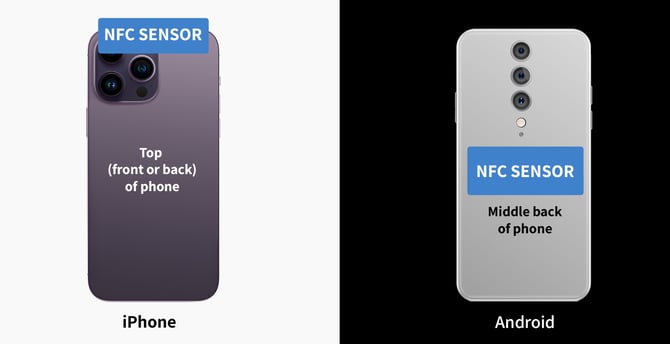
### How to use the NFC "tap" method to share your microsite
NFC devices require very close proximity to work, and it may take a second or two for smartphone NFC sensors to register them. These NFC sensors are located in different places for different devices (see the above image), and Android users can turn NFC sensors off in their phones' settings.
**To use the NFC "tap" method to share your microsite, hold an activated Smart Accessory up to the NFC sensor on a smartphone for a few moments, then tap the link preview to open your microsite.**
For more information on how to use OneTapConnect Smart Accessories, see the video below.
#### Helpful tips for using the NFC "tap" method to share your microsite
- NFC readers are located near the tops of iPhones and near the center or upper-middle area of Android devices.
- Smart Bumpers, Smart Stickers, and other Smart Accessories should not be placed too close to NFC sensors when not in active use. Otherwise, your phone's NFC sensor will constantly register the NFC chip and flood your device with notifications.
- Smart Wristband NFC chips are located in the thickest part of the band.
- Smart Key Tag NFC chips are located on the debossed side of the Key Tag.
- Bulky phone cases may interfere with NFC sensors.
- Because Android users can turn NFC readers off in their phones' settings, QR codes are the preferred method for sharing your microsite with an Android user while using Smart Accessories.
- In the case that someone's phone fails to register your Smart Accessory, QR codes and in-app Share functions provide alternative sharing methods.
#### 
### How to use Smart Accessory QR codes to share your microsite
You can also use the QR codes that are printed on most OneTapConnect Smart Accessories to share your microsite. Because Android users can turn NFC readers off in their phones' settings, QR codes are the preferred method for sharing your microsite with an Android user while using Smart Accessories.
**To use a Smart Accessory QR code to share your microsite, scan the QR code using a smartphone camera, then tap the link preview to open your microsite.**
If you experience any difficulties using your Smart Accessories, see [Why isn't my Smart Accessory working](https://help.onetapconnect.com/why-isnt-my-smart-accessory-working?hsLang=en) for more information and troubleshooting support.
- [Getting Started](https://help.onetapconnect.com/getting-started?hsLang=en)
- [Sharing Your Identity Profile](https://help.onetapconnect.com/sharing-your-identity-profile?hsLang=en#main-content)
- [Identity Profile Functions](https://help.onetapconnect.com/sharing-your-identity-profile?hsLang=en#identity-profile-functions)
- [Smart Accessories](https://help.onetapconnect.com/sharing-your-identity-profile?hsLang=en#smart-accessories)
- [FAQ](https://help.onetapconnect.com/faq?hsLang=en)
- [Identity Profile Information & Design](https://help.onetapconnect.com/identity-profile-information-design?hsLang=en)
- [Team Management](https://help.onetapconnect.com/team-management?hsLang=en)
- [Mobile Application](https://help.onetapconnect.com/mobile-application?hsLang=en)
- [Account & Billing](https://help.onetapconnect.com/account-billing?hsLang=en#main-content)
- [Account & Subscription](https://help.onetapconnect.com/account-billing?hsLang=en#account-subscription)
- [Billing](https://help.onetapconnect.com/account-billing?hsLang=en#billing)
- [Tips & Tricks](https://help.onetapconnect.com/tips-tricks?hsLang=en)
- [Contact us](https://onetapconnect.com/contact-us/)
- [Terms of use](https://onetapconnect.com/terms-of-use/)
- [Privacy policy](https://onetapconnect.com/privacy-policy/)
[](http://onetapconnect.com)
[mailto:support@email.com](mailto:support@email.com)
Copyright © 2025, ONE TAP CONNECT