
All OneTapConnect near-field communication (NFC) Smart Accessories work the same way. They are simple to use once you understand how they work, but like any technology, it may take some time to feel confident in using and implementing Smart Accessories effectively.
For more information and helpful tips on how to use your Smart Accessories to share your microsite in person, see How to use OneTapConnect Smart Accessories.
This guide is intended to help you troubleshoot any technical issues you might be experiencing using your Smart Accessories.
If this article does not address your issue or solve the problem you are experiencing, please contact our team at support@onetapconnect.com.
Why does my Smart Accessory pull up an error page?
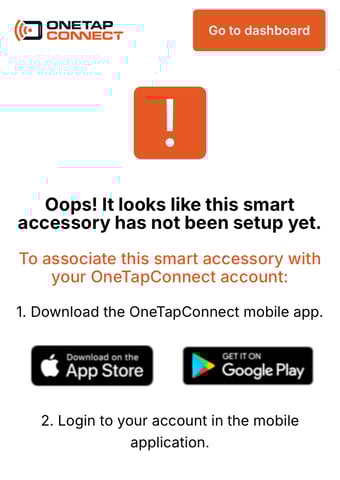
Your Smart Accessory has not been set up yet
If you haven't already, you will need to activate your Smart Accessory using the OneTapConnect mobile app.
For more information on how to set up your Smart Accessories, see How to activate OneTapConnect NFC Smart Accessories.
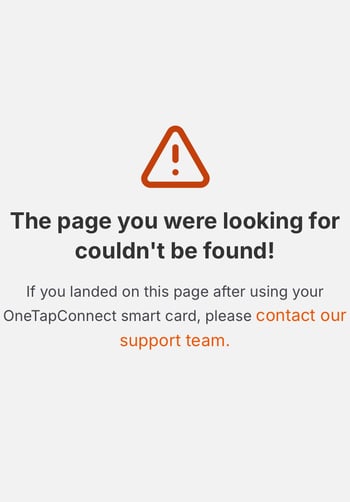
Your microsite page cannot be found
This error occurs when a Smart Accessory has been activated, but the microsite it is connected to is not active.
This may occur for several reasons, including:
- Your new microsite or Team Template has not been published yet.
- You're a Team Plan user in a Team that has not been assigned to a published Template.
- Your microsite is deactivated due to an outstanding balance on your account.
For additional account and troubleshooting support, please contact our team at support@onetapconnect.com.
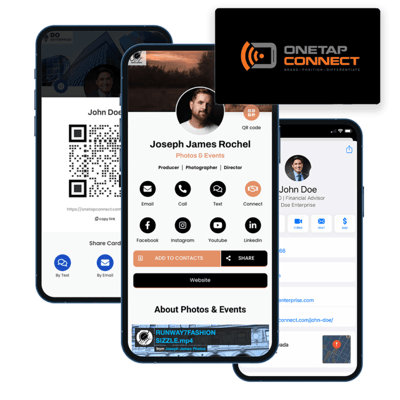
Why does nothing happen when I use the NFC "tap" method?
If the QR code method works, but holding the Smart Accessory up to the NFC sensor on a smartphone for a few seconds doesn't pull up a link preview, here are a few things to try:
- Ensure you are holding the Smart Accessory in the right place for the device. NFC readers are located near the tops of iPhones and near the center or upper-middle area of Android devices.
- Try holding the Smart Accessory against the phone's NFC sensor for a bit longer. NFC devices require very close proximity to work, and it may take a second or two for NFC sensors to register them.
- Ensure the NFC sensor on your phone is not turned off. iPhone users cannot deactivate NFC sensors, but Android users can deactivate NFC sensors in their phones' settings.
- Charge the NFC chip. NFC chips are charged with every use. If you haven't used a Smart Accessory in a while, hold it up to your phone's NFC sensor for about 10 seconds to recharge the NFC chip, then try again.
If you have tried the above steps and the issue still persists, please contact our team at support@onetapconnect.com.