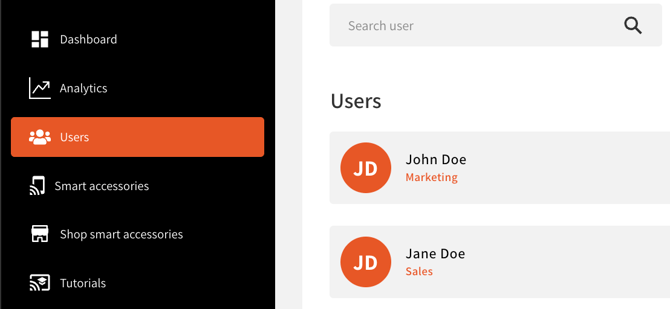
Most of the information on your identity profile(s) can be managed by updating the values that are saved to your account’s user/identity profile(s).
If you're part of a team plan and you are not an account administrator or manager, it is possible that you cannot manage your own contact information under your company's account settings.
If this is the case, you can send update requests directly to your company’s account administrator from the My Card page of your account dashboard or from the Edit Profile menu of the OneTapConnect mobile app.
How to update your own identity profile information
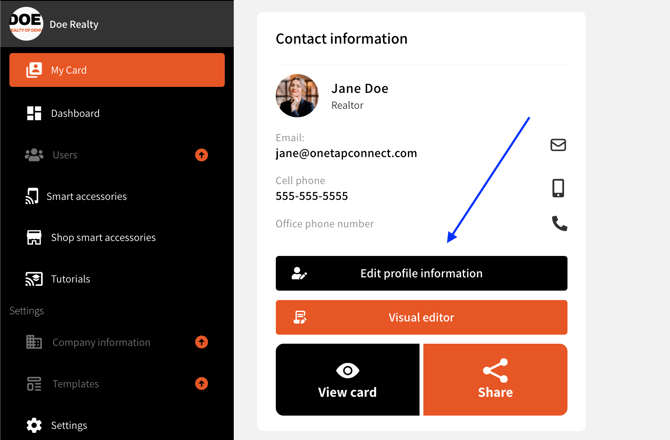
How to update your own identity profile information on your account dashboard:
- Log in to your OneTapConnect account dashboard.
- Go to My Card, then click Edit Profile Information to open a series of forms where you can update your identity profile information.
- Make the necessary changes, then click Save to update your live identity profile.
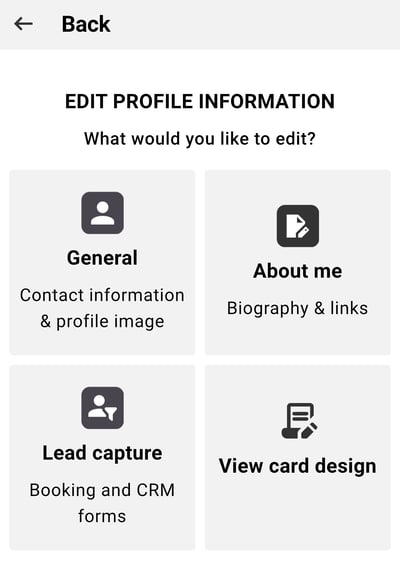
How to update your own identity profile information on the OneTapConnect mobile app:
- Open the OneTapConnect mobile app, then tap Cards.
- On the My Card tab, tap Edit profile, then select General, About Me, or Lead Capture to open the section you need to update.
- Make the necessary changes, then tap Save to update your live identity profile.
How to update someone else's identity profile information
If you're an owner, administrator, or manager of your company’s OneTapConnect account, you can manage your users' identity profile information on your OneTapConnect account Dashboard.
How to update other users' identity profile information:
- Log in to your OneTapConnect account dashboard.
- Go to Users, then click the name of the user/identity profile you need to update.
- Click Edit Profile Information to open a series of forms where you can update that identity profile's information.
- Make the necessary changes, then click Save to update that live identity profile.
You may notice that some fields are greyed out and displayed “for informational purposes only," but you can unlock these fields to override company information as needed. For more information on personalizing identity profiles, see How to personalize company information on a identity profile-by-identity profile basis.