
Everything that is saved to your account's Company Information page is considered the default information for every identity profile on your account, but you can make exceptions by unlocking specific fields for personalization. This will enable you to override specific values on any user/identity profile(s) as needed.
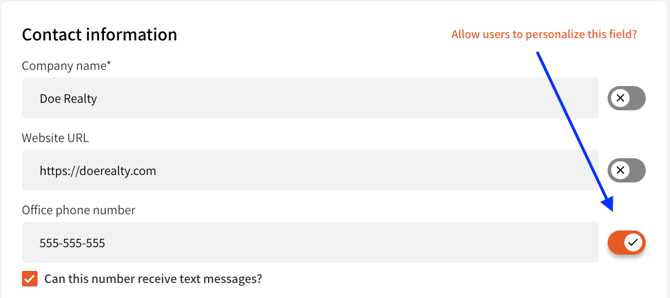
How to personalize Company Information on a user/identity profile
- Log in to your OneTapConnect account dashboard.
- Go to Company Information.
- Enable the Allow users to personalize this field toggle switches for any fields you need to personalize.
- Click Save, then go to Users.
- Click the name of the user/identity profile you need to personalize, then click Edit profile information. This will take you to a series of forms, and any Company Information fields you've unlocked for personalization can be updated as needed.
- Make the necessary changes, then click Save to update that live identity profile with personalized company information.
To revert personalized values to the information that is saved in your Company Information profile for a specific field, disable the corresponding Allow users to personalize this field toggle switch on your account's Company Information page.
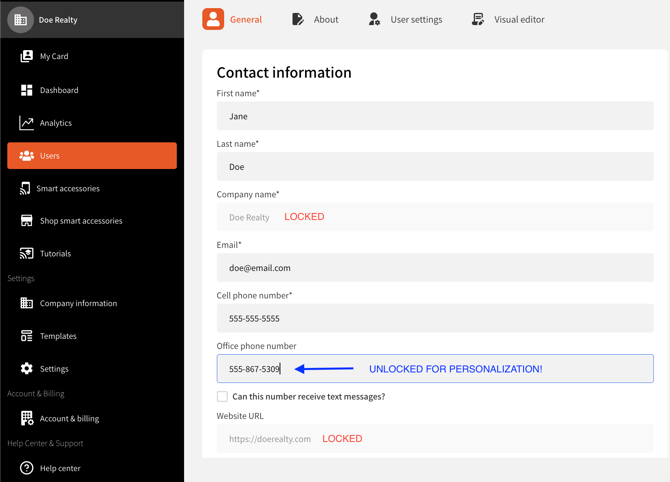
Under default account settings, all active users can update their own profile/identity profile information, and this permission extends to any Company Information fields that are unlocked for personalization.
To maintain full control over the information on your company's identity profiles, you can restrict this access on the Settings page of your account dashboard.