
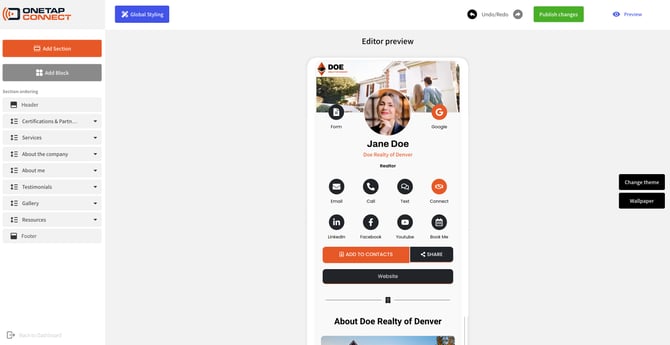
While many elements can be dynamically updated by adjusting user/identity profile information, the Visual Editor enables you to make graphic design changes to your identity profile(s) while viewing a live preview of any changes you make.
How to open the Visual Editor as a Professional Plan user:
- Log in to your OneTapConnect account dashboard.
- Go to My Card, then click Visual Editor.
How to open the Template Visual Editor as a Team Plan administrator or manager:
- Log in to your OneTapConnect account dashboard.
- Go to Templates.
- Click ⋮ on the Template you need to update, then click Edit Template to open the Visual Editor for that Template.
Essential functions of the Visual Editor

- Global Styling: Enables you to make changes that affect the look of your whole design. Global styling options include color themes, font styles, and more.
- Undo/Redo: Undo or repeat any action(s) you’ve taken.
- Publish Changes: Publish the changes you've made to your live identity profile(s).
- View Card: View your live identity profile (not accessible from the Template Visual Editor for Team Plan users).
Intro to Sections and Blocks
What is a Section, and what is a Block?
- Section: A container that contains block elements.
- Block: Any element that can be contained inside a Section.
For example, Testimonials is a Section, whereas Video Testimonials and Written Testimonials are Blocks you can put inside a Testimonials Section.
There are two ways to navigate between Blocks and Sections on your design:
- Use the dropdown menus in the sidebar to expand Sections and view Blocks.
- Click the element you need to update in the Live Preview. This works for nearly every element of your design.
How to add a Section or Block to your identity profile(s)
How to add a Section to your identity profile(s):
- Click Add Section to open a menu of Section options.
- Click, drag, and drop your selection into the sidebar.
How to add a Block to your identity profile(s):
- Click the name of the Section you need to add a Block to in the sidebar. This will expand the Section dropdown and display any Block elements in that Section.
- Click Add Block to open a menu of Block options.
- Click, drag, and drop your selection into the expanded Section dropdown in the sidebar.
How to Hide a Section or Block
Both Sections and Blocks within your OneTapConnect's Visual Editor can be temporarily hidden without deleting any of their content.
- Click on the Section or Block that you want to hide.
- Select Settings.
- Toggle the Hide option On.
How to publish updates and exit the Visual Editor
To publish any changes you've made to your design, click Publish Changes. This will instantly update your live identity profile(s).
To exit the Visual Editor, click Back to Dashboard.
Your progress will automatically be saved if you close the page or exit the Visual Editor, but any changes you've made will not become live until you click Publish Changes.