
If you're an account owner, administrator, or manager who is associated with more than one company account, you can switch between company accounts to access everything you need using the same login information.
How to switch between company accounts
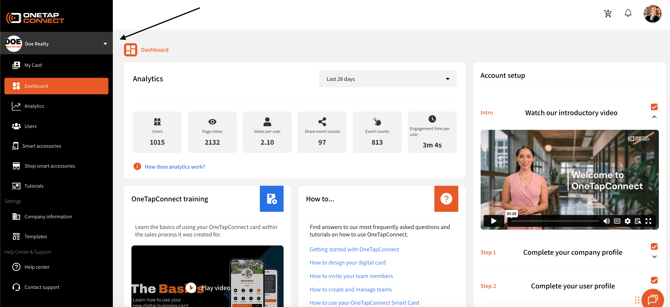
On your OneTapConnect account dashboard:
- Log in to your OneTapConnect account dashboard.
- Click the name of your company, then select the name of the company account you need to access.
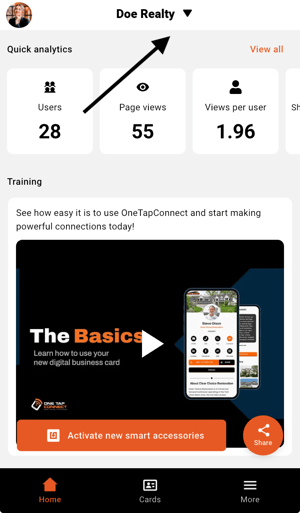
Using the OneTapConnect mobile app:
- Open the OneTapConnect mobile app.
- Click the name of your company, then select the name of the company account you need to access.
Because company accounts are considered separate entities on OneTapConnect, each company account has its own unique settings and configurations. Depending on your role and access level within a given company account, these differences may be reflected in what you can and can't access when you switch between company accounts.
To access the company name dropdown and switch between company accounts, your user account must be associated with more than one company account.
To merge any existing company accounts into an existing user account, please contact our team at support@onetapconnect.com.