
If you use a customer resource management (CRM) software like HubSpot, GoHighLevel or Zoho, or if you use a scheduling solution like Microsoft Bookings, Google Calendar or Calendly, you can integrate these systems directly into your OneTapConnect microsite(s) using embed code.
This enables you to capture and pre-qualify leads very efficiently, and it provides a streamlined user experience that reduces friction for your prospects to encourage more contacts, more appointments, and more business.
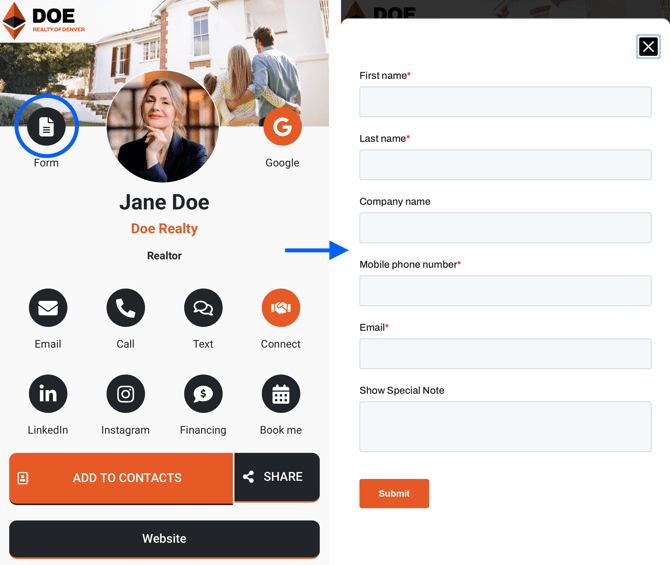
How to embed a form or appointment scheduler on your microsite(s)
- If you haven’t already, create a form or appointment scheduler using your preferred CRM or scheduling software.
- Log in to your OneTapConnect account dashboard.
- Navigate to the Lead Capture section.
- If you're the owner of a Professional Plan account, go to My Card > Edit profile information > Lead Capture.
- If you’re the owner, administrator, or manager of a Team Plan account, go to Company Information > Lead Capture.
- In a separate tab, locate the embed code for the form or appointment scheduler you need to add to your OneTapConnect account. Embed codes can typically be found under the integration or share settings for specific resources on the dashboard of the system that hosts them.
- Copy and paste the embed code into the appropriate field on the Lead Capture page of your OneTapConnect dashboard.
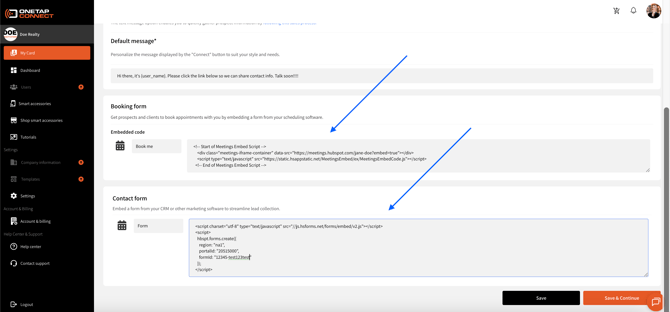
- Click Save, then navigate to the Visual Editor.
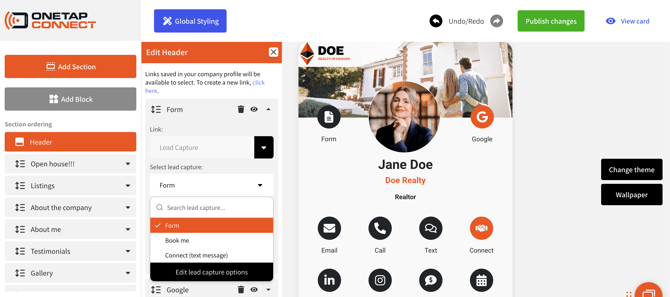
- Open the edit menu for the element you need to attach a saved embed code to. Embed codes can be attached to any button, icon, or call-to-action element that enables you to add a link.
- Use the Link dropdown to select Select from lead capture +.
- Use the Select Lead Capture dropdown to select the saved embed code you need to assign to that element.
- Update the off-canvas title and description, or use the toggle switches to hide these fields.
- Click Publish changes to update your live microsite(s).
Once a saved lead capture method has been assigned to an element using the Visual Editor, your clients will be able to tap that element on your microsite(s) to open a window where they can submit their information, book an appointment, or take a similar action.
Any submissions to embedded resources made from your microsite(s) will be sent straight to your CRM or scheduling software, where you can follow up, track, and automate your lead qualifying processes accordingly.